Amazon Main Image White Background Checker
Drop a main image to see whether its border is pure white and how much of the frame the product fills.
How to use the Amazon Main Image White Background Checker
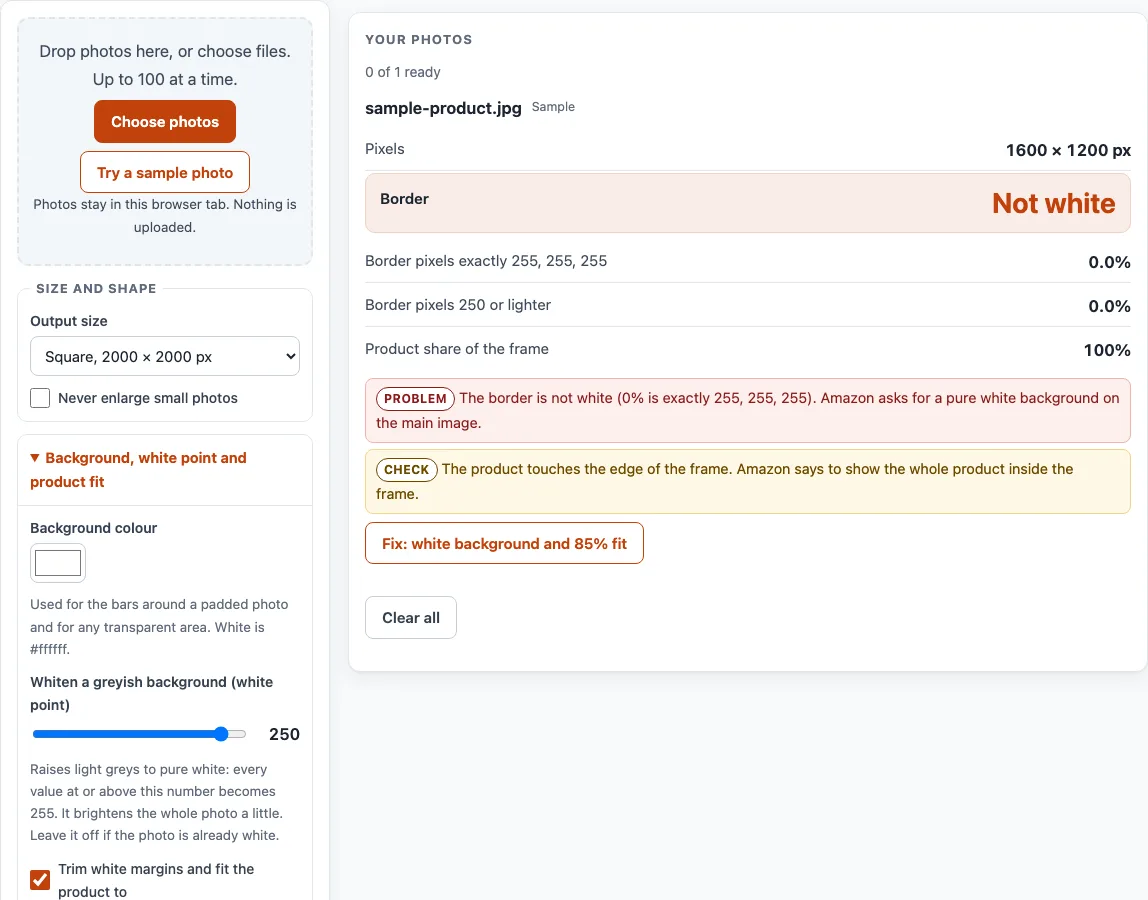
- Click “Choose photos” or drop your files on the box. You can add up to 100 photos per batch. To try the tool first, click “Try a sample photo” to load a sample that shows a failing result.
- Read the “Border” verdict on each card. Below it, check “Border pixels exactly 255, 255, 255” and “Border pixels 250 or lighter”. A “Border pixels transparent” line appears only if the border has transparent pixels.
- Check “Product share of the frame”. The tool warns when the product is below 85% of the frame or touches the frame edge.
- For a grey or near-white backdrop, lower the slider “Whiten a greyish background (white point)”. The Fix button uses 250 by default. Slide it to 255 to turn it off.
- Choose an “Output size” from the menu. “Square, 2000 × 2000 px” is our default, not an Amazon rule. You can also use “Custom size…”.
- Turn on “Trim white margins and fit the product to [85] %” if the photo has a white or nearly white backdrop.
- Click “Fix: white background and 85% fit”. The tool makes a corrected copy and measures the new file again, then shows the new border and fill figures.
- Click “Download” on a card to save that photo. When two or more photos are ready, “Download ZIP (first 10)” saves the first 10 results. Click “Clear all” to empty the list.
Every photo is recalculated when you change an option. The file name pattern accepts the tokens {name}, {n}, {lot} and {w}, {h}.
What does a pure white background mean for Amazon’s main image?
Amazon’s product image help page, read on 16 October 2026, says the main image background must be pure white, RGB 255, 255, 255. Amazon states those exact values and gives no tolerance on the page we read, which is why this tool sets its own thresholds.
How does the tool decide between “Pure white” and “Near white”?
The tool measures the border, which is the outer ring of the image. The ring is 1% of the shorter side wide, with a minimum of 2 px. “Pure white” needs at least 99% of the ring to be exactly 255, 255, 255. “Near white” needs at least 99% to be 250 or lighter. If 1% or more of the ring is transparent, the verdict is “Transparent”. Otherwise it is “Not white”. These thresholds are the tool’s own.
Why can a JPEG look white but read as “Near white”?
The measurement runs on a copy scaled down to at most 1600 px on the longest side. JPEG compression can also change some pure white pixels to 254. An editor may show the photo as white while the tool reads it as “Near white”. Amazon lists JPEG as the recommended file type, along with TIFF, PNG and non-animated GIF.
How is the product’s share of the frame calculated?
The product is the set of pixels that are not transparent and have a red, green or blue value below 245. Product share is the larger of two ratios: product width divided by image width, and product height divided by image height. Amazon says the product should be 85% of the image, and the tool warns below that figure.
Here is a worked example from the tool’s own layout code. A 1,000 × 1,000 px photo with the product in an 800 × 400 px box, output at 2,000 px square with an 85% fit, draws the product at 1,700 × 850 px, centred at x 150, y 575. A 1,600 × 1,200 px photo with the product in a 1,000 × 900 px box draws it at 1,700 × 1,530 px, centred at x 150, y 235.
What can the white point slider and Fix button change, and what can they not?
The white point slider runs from 200 to 255. Every colour value at or above the chosen number becomes 255, so a light grey or near-white backdrop turns pure white. This also brightens the photo slightly. The Fix button uses the same method and then trims and fits the product. Neither one removes or replaces a coloured backdrop, shadows or clutter.
Amazon: what the help pages say
| Item | What it says | Source |
|---|---|---|
| Main image background | Pure white, RGB 255, 255, 255 | Amazon Seller Central: Product image guide |
| Main image product size | The product should be 85% of the image | Amazon Seller Central: Product image guide |
| Whole product in the frame | Do not cut off any part of the product | Amazon Seller Central: Product image guide |
| Size | At least 500 px and at most 10,000 px on the longest side; 1,000 px or more enables zoom | Amazon Seller Central: Product image guide |
| File types | JPEG (recommended), TIFF, PNG, non-animated GIF | Amazon Seller Central: Product image guide |
Read on 16 October 2026. Platforms change their rules; the platform's own page decides. Needs a browser to display; read in a browser window.
Worked examples
| Input | Result |
|---|---|
| 1,000 × 1,000 photo with the product in a 800 × 400 px box, 2,000 px square, 85% fit | product drawn at 1,700 × 850 px, centred at x 150, y 575 |
| 1,600 × 1,200 photo with the product in a 1,000 × 900 px box, 2,000 px square, 85% fit | product drawn at 1,700 × 1,530 px, centred at x 150, y 235 |
Calculated by the same code the tool above runs.
Frequently asked questions
Does the tool change my original photo?
No. The check measures the photo without changing it. Downloads are new files, and saving through the tool writes a new file without the original’s camera, date and location (EXIF) data.
Are my photos uploaded anywhere?
No. Photos are read and processed inside your browser and are never uploaded.
Does a “Pure white” verdict mean Amazon will accept my photo?
No. The verdicts come from this tool’s own thresholds. They show how the border and product share compare with the rules, but they cannot tell you what Amazon will decide.
Why does my photo show “Near white” when it looks white?
JPEG compression can change some pure white pixels to 254, and the measurement uses a scaled copy. Use the white point slider or the Fix button to make a corrected copy.
Can the tool remove a grey or coloured background?
Not fully. The white point slider can turn a light grey or near-white backdrop white. It does not remove or replace a coloured background, and it cannot fix shadows or clutter.
Why is the default output size 2000 × 2000 px?
It is our default, not an Amazon rule. Amazon’s published range is at least 500 px and at most 10,000 px on the longest side, and 1,000 px or more enables zoom. You can choose 1000 × 1000 px or 3000 × 3000 px from the menu, or set a custom size.
Can I download all my photos in one ZIP?
The free “Download ZIP (first 10)” button holds the first 10 results. Whole-batch ZIPs are a planned Pro feature, and a waitlist is on the site at /pro/. Nothing paid exists yet.
My iPhone HEIC photo won’t open. What should I do?
HEIC photos from an iPhone may not open outside Safari. If yours does not, export it as a JPEG first.
Related tools
- Amazon Product Image Requirements: Resize product photos for Amazon and fit the product to 85% of a white square.
- Add Lot Number to Photos: Print an increasing lot number or SKU on every photo in a batch.
- Batch Resize Photos for Listings: Resize a whole batch to a marketplace’s size, or to a custom size.
- Batch Watermark Photos: Add a text or logo watermark to many photos at once.
- Image to Square: Turn photos into 1:1 squares by padding or cropping.
- Listing Photo Checker: Test photos against the published Etsy, eBay, Amazon and Shopify numbers.
- Make Photo White Background: Flatten transparent images onto white, pad to a square and whiten a greyish backdrop.
- eBay Picture Size: Resize photos to eBay’s recommended size and check them against eBay’s numbers.
- Marketplace Photo Size Guides: Browse the photo size page for every marketplace.