Google Business Profile Photo Size
Google recommends 720 x 720 px, with a 250 px minimum, JPG or PNG, 10 KB to 5 MB. Resize and check a batch of photos here.
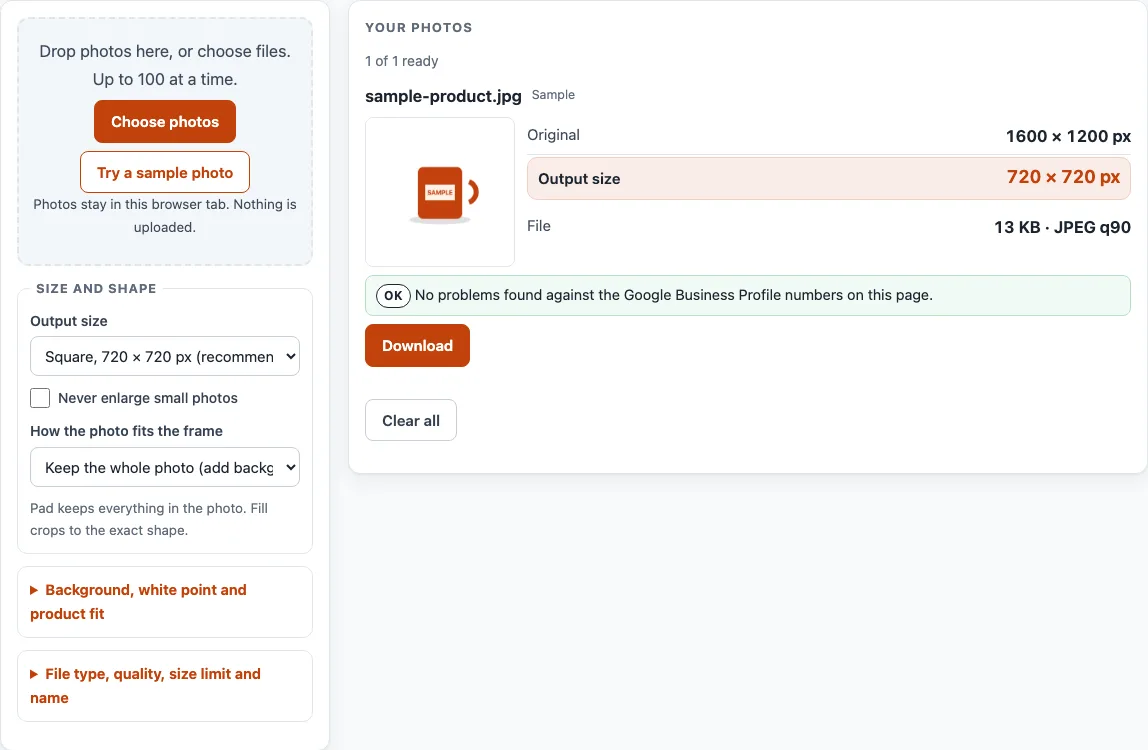
How to use the Google Business Profile photo size tool
- Click “Choose photos” or drop your files onto the box. You can add up to 100 photos per batch. To try the tool first, click “Try a sample photo”.
- Open the “Output size” menu. The default, “Square, 720 × 720 px (recommended)”, matches Google’s recommended size. “Keep the shape, longest side 1200 px (our choice)” is our own option, not a Google number.
- Choose how the photo fits the frame. “Keep the whole photo (add background around it)” leaves the full photo visible. “Fill the frame (cut off the overflow)” crops the edges, and then “Crop focus” sets which part to keep: Centre, Top, Bottom, Left or Right.
- If you need them, tick “Never enlarge small photos” and set “Keep each file under” in KB or MB.
- Choose the file type. JPEG is the default, and PNG and WebP are also offered. Pick JPEG or PNG for Google.
- Check each card. It shows the “Original” size, the “Output size”, the “File” size, and any notes or checks.
- Click “Download” on a single card, or click “Download ZIP (first 10)” when two or more photos are ready. The free ZIP holds the first 10 results.
Changing any option recalculates every photo. “Clear all” empties the list.
What size should Google Business Profile photos be?
Google’s help page recommends 720 px tall by 720 px wide for Business Profile photos. This is a recommendation, not a required size, and the page sets a lower minimum as well.
Two examples show how the tool draws a 4,000 × 3,000 px photo. With “Keep the whole photo (add background around it)” in a 720 × 720 px frame, the photo is drawn at 720 × 540 px, with 90 px bars above and below. With “Keep the shape, longest side 1200 px (our choice)”, the output is 1,200 × 900 px.
What file types and file size does Google Business Profile accept?
Google’s page accepts JPG or PNG files between 10 KB and 5 MB. The tool flags any file type other than JPEG or PNG, and any file under 10 KB or over 5 MB.
“Keep each file under” lowers JPEG or WebP quality until the file fits and, if quality alone is not enough, shrinks the pixels in steps. PNG files cannot be shrunk this way, so the tool does not apply the limit to PNG and says so on the card.
What is the minimum photo size for Google Business Profile?
Google’s minimum is 250 px tall by 250 px wide. The tool flags any photo whose shortest side is under 250 px.
When a photo is enlarged to reach the output size, the card shows the enlargement as a percentage. An enlarged photo has no extra detail, so the figure helps you judge the result. “Never enlarge small photos” stops the tool from enlarging at all.
Is there a separate size for the logo or cover photo?
No. Google’s page gives no separate size or file rules for a cover photo or logo, so the general photo rules apply. A cover photo should represent the business and setting, but the page does not promise where it will appear. If a logo does not appear, the page says to check that the profile has a name, a valid street address, categories, a phone number and opening hours.
Google Business Profile: what the help pages say
| Item | What it says | Source |
|---|---|---|
| File types | JPG or PNG | Google Business Profile Help: Manage your Business Profile photos & videos |
| File size | Between 10 KB and 5 MB | Google Business Profile Help: Manage your Business Profile photos & videos |
| Recommended resolution | 720 px tall by 720 px wide | Google Business Profile Help: Manage your Business Profile photos & videos |
| Minimum resolution | 250 px tall by 250 px wide | Google Business Profile Help: Manage your Business Profile photos & videos |
| Quality | In focus and well lit, without significant alterations or excessive filters | Google Business Profile Help: Manage your Business Profile photos & videos |
| Cover photo and logo | No separate size or file rules on that page: the general photo rules apply; a cover photo is not guaranteed to show first | Google Business Profile Help: Manage your Business Profile photos & videos |
| Video | Up to 30 seconds and 75 MB, 720p or higher | Google Business Profile Help: Manage your Business Profile photos & videos |
Read on 16 October 2026. Platforms change their rules; the platform's own page decides. Google Business Profile Help: Manage your Business Profile photos & videos: read on 18 October 2026.
Worked examples
| Input | Result |
|---|---|
| 4,000 × 3,000 photo, 720 × 720 frame, keep whole photo | photo drawn at 720 × 540 px, 90 px bars above and below |
| 4,000 × 3,000 photo, 3,000 × 3,000 frame, fill the frame (center) | keeps a 3,000 × 3,000 px area starting at x 500, y 0; scaled to 3,000 × 3,000 px |
| 4,000 × 3,000 photo, longest side 1,200 px | 1,200 × 900 px |
Calculated by the same code the tool above runs.
Frequently asked questions
Does the tool check focus, lighting or filters?
No. It checks the file type, file size and shortest side against Google’s numbers. Google’s page also asks for photos that are in focus, well lit, free of significant alterations and excessive filters, and that accurately show the business, so review those yourself.
Does the tool remove or replace the background?
No. It only resizes, crops and sets the background colour around a photo where the frame is larger than the photo. It does not edit colours or remove backgrounds.
Are my photos uploaded anywhere?
No. Photos are read and processed inside your browser and are never uploaded.
Does the saved photo keep its camera, date and location data?
No. Saving a photo through the tool writes a new file without the original’s camera, date and location (EXIF) data.
Can I use HEIC photos from my iPhone?
HEIC photos from an iPhone open only in Safari. In other browsers, export the photo as JPEG first.
Which file type should I choose?
Choose JPEG or PNG, the two types Google lists. JPEG is the default. If you pick WebP, the tool flags it because Google’s page does not list that type.
Is the tool free?
Yes. It is free and needs no sign-up. Whole-batch ZIPs are a planned Pro feature with a waitlist at /pro/, but nothing paid exists yet.
Related tools
- Shopify Product Image Size: use it when your photos are for a Shopify store.
- Etsy Listing Photo Size: use it when your photos are for an Etsy listing.
- Image to Square: use it when you need a square version of a single photo.
- Batch Resize Photos for Listings: use it to resize a larger group of photos for listings.
- Listing Photo Checker: use it to check existing photos against listing size rules.
- Marketplace Photo Size Guides: use it to compare photo size guidance across marketplaces.