Make Photo White Background
Flatten, pad and whiten product photos onto pure white. This does not remove a busy background.
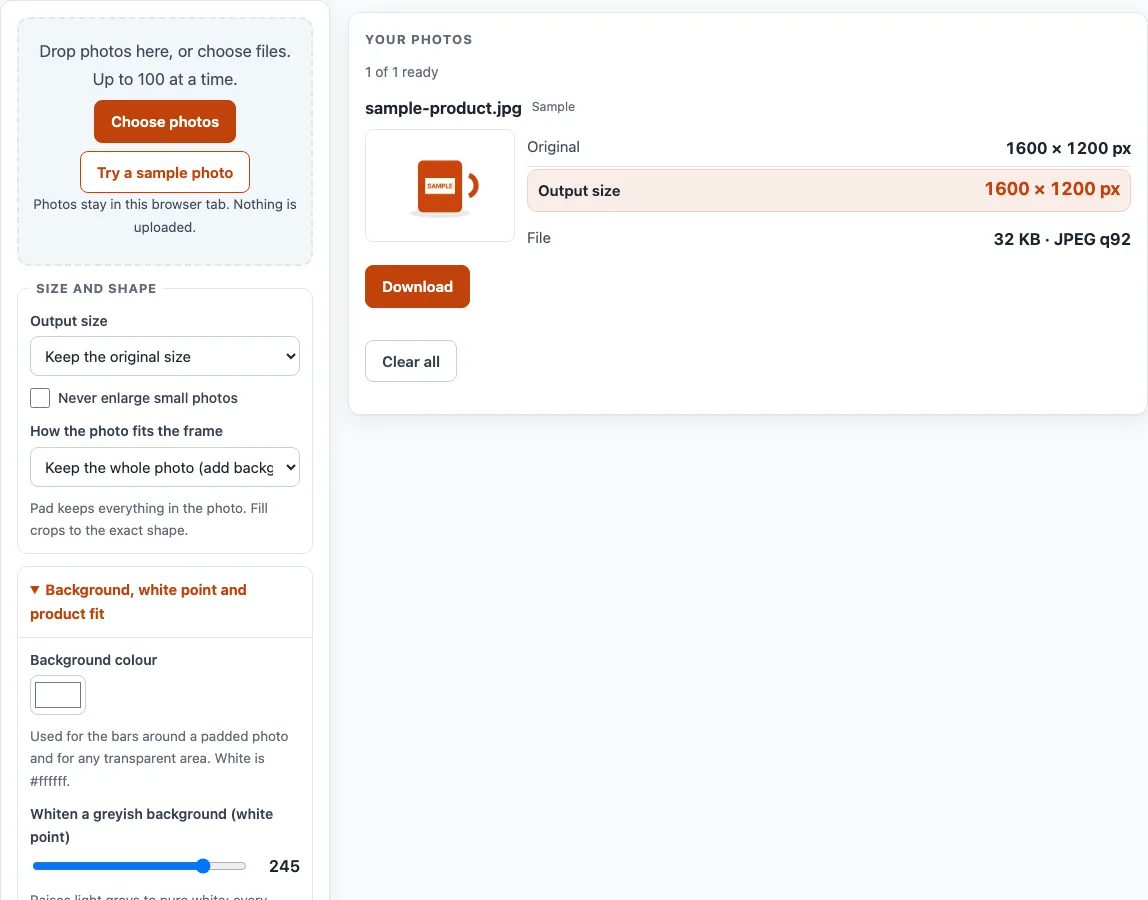
How to use the Make Photo White Background tool
- Click “Choose photos” or drop files on the box (up to 100 per batch). To try the tool first, click “Try a sample photo”.
- Open “Output size”. “Keep the original size” is our default. The menu also offers “Square, 2000 × 2000 px” and “Square, 1200 × 1200 px”. These are menu sizes, not marketplace rules.
- Keep “Background colour” at #ffffff (our default) so bars and transparent areas turn white.
- For a light grey backdrop, lower “Whiten a greyish background (white point)” from 255 (Off). It starts at 245 (our default).
- For a product with a white margin, turn on “Trim white margins and fit the product to” and set the percentage. It starts at 85.
- Under “How the photo fits the frame”, pick “Keep the whole photo (add background around it)” or “Fill the frame (cut off the overflow)”. If you fill, choose a “Crop focus”.
- Pick a file type. JPEG is the default, and PNG or WebP are also offered.
- Optionally set “Keep each file under” in KB or MB.
- Check each card’s “Original”, “Output size” and “File” sizes, and read any notes.
- Click “Download” on a card, or click “Download ZIP (first 10)” when two or more photos are ready.
The tool recalculates every photo when an option changes, so set your options before you download. Click “Clear all” to empty the list and start again.
Can this tool replace a photo background with white?
No. The tool does not cut out or replace a background. It flattens transparent areas onto a colour, pads a photo with bars, whitens a light backdrop and trims white margins, and it leaves a coloured, cluttered or shadowed background as it is.
Transparent areas are filled with the chosen background colour, so the output never has transparency. Removing a coloured backdrop needs a background-removal tool. This site does not have one.
Marketplaces publish their own image sizes and rules on their help pages, and this page does not hold those numbers. Check the current help page of the marketplace you sell on. This tool cannot say whether a photo will be accepted.
How does the white point turn a grey backdrop white?
The white point takes every colour value at or above the number you choose and sets it to 255, which is pure white. A light grey backdrop that is only slightly darker than white therefore becomes white. The slider runs from 200 to 255, and 255 means off.
Use it carefully. Lower values also wash out light parts of the product, and the whole photo brightens slightly. Because it changes only values near white, it does nothing to a coloured background.
The trim option works on a similar idea. A pixel counts as product when it is not transparent and any of its red, green or blue values is below 245. The tool crops the empty margin, scales the product to the chosen percent of the frame, and centres it.
Worked example: a 1,600 × 1,200 px photo with the product inside a 1,000 × 900 px box, a 2,000 px square output and a 90% fit. The product is drawn at 1,800 × 1,620 px, centred at x 100, y 190.
Fit example: a 4,000 × 3,000 px photo in a 2,000 × 2,000 px frame, with “Keep the whole photo (add background around it)”, is drawn at 2,000 × 1,500 px, with 250 px bars above and below.
If a photo is enlarged to reach the output size, its card shows the percentage, because an enlarged photo has no extra detail.
Worked examples
| Input | Result |
|---|---|
| 4,000 × 3,000 photo, 2,000 × 2,000 frame, keep whole photo | photo drawn at 2,000 × 1,500 px, 250 px bars above and below |
| 1,600 × 1,200 photo with the product in a 1,000 × 900 px box, 2,000 px square, 90% fit | product drawn at 1,800 × 1,620 px, centred at x 100, y 190 |
Calculated by the same code the tool above runs.
Frequently asked questions
Does this tool remove a coloured background?
No. A coloured, cluttered or shadowed background stays as it is. Only a background-removal tool can take that out, and this site does not have one.
What is the difference between “Keep the whole photo” and “Fill the frame”?
“Keep the whole photo (add background around it)” fits the full photo inside the frame and adds bars, so nothing is cut off. “Fill the frame (cut off the overflow)” scales the photo to cover the frame and trims the edges, and “Crop focus” sets which part stays.
Are my photos uploaded anywhere?
No. Photos are read and processed inside your browser and are never uploaded. The tool is free and needs no sign-up.
Why won’t my iPhone HEIC photo open?
HEIC photos from an iPhone may not open outside Safari. If yours does not, export it as JPEG first, then add it to the tool.
Will a marketplace accept my white background for product photos?
The tool cannot say that. Marketplaces publish their own sizes and rules on their help pages, and this tool does not hold those numbers. Check the current help page of the marketplace you sell on before you upload.
Does saving remove the camera and location data?
Yes. Saving a photo through the tool writes a new file without the original’s camera, date and location (EXIF) data.
Related tools
- Add Lot Number to Photos: Print an increasing lot number or SKU on every photo in a batch.
- Batch Resize Photos for Listings: Resize a whole batch to a marketplace’s size, or to a custom size.
- Batch Watermark Photos: Add a text or logo watermark to many photos at once.
- Image to Square: Turn photos into 1:1 squares by padding or cropping.
- Listing Photo Checker: Test photos against the published Etsy, eBay, Amazon and Shopify numbers.
- Amazon Product Image Requirements: Resize product photos for Amazon and fit the product to 85% of a white square.
- eBay Picture Size: Resize photos to eBay’s recommended size and check them against eBay’s numbers.
- Etsy Listing Photo Size: Resize a batch of photos to the size Etsy recommends for listing photos.
- Batch Photo Tools for Sellers: Browse every batch photo tool.