WooCommerce Product Image Size
See the sizes WooCommerce's own docs give, then resize a batch of product photos to a square 800, 300 or 100 px in your browser.
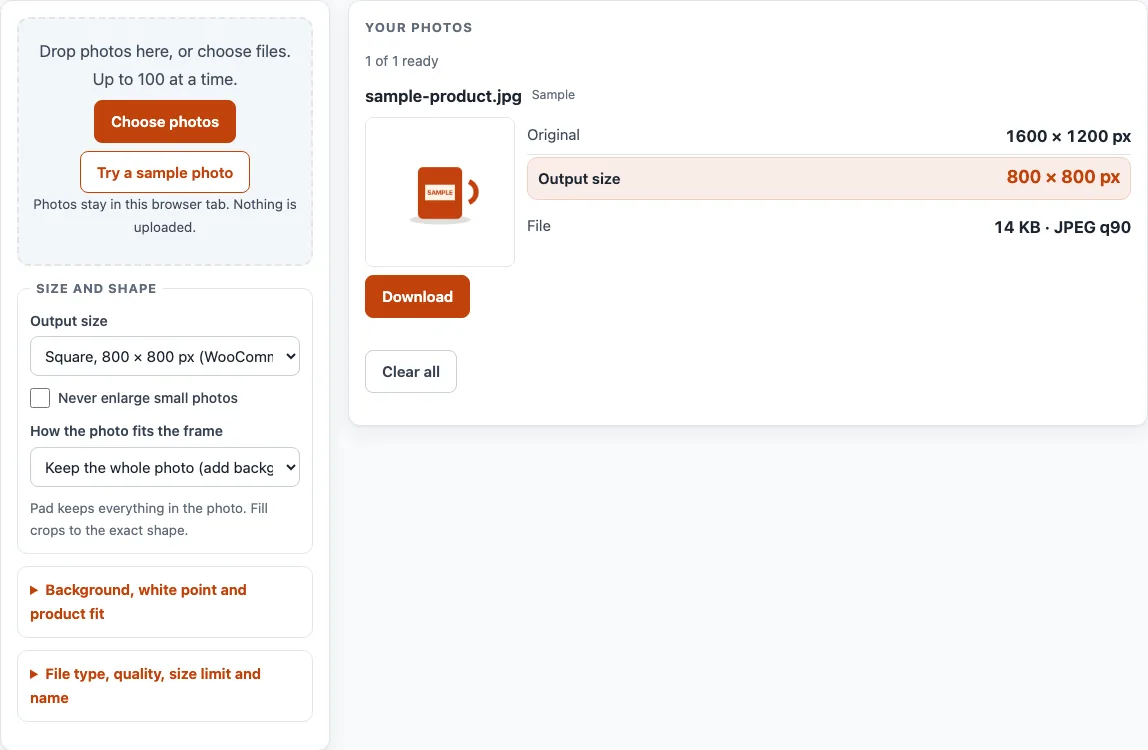
How to use the WooCommerce product image size tool
- Click “Choose photos” or drop your files on the box. You can add up to 100 photos per batch. To try the tool first, click “Try a sample photo”.
- Check the “Original” size on each card.
- Open the “Output size” menu. The default is “Square, 800 × 800 px (WooCommerce’s recommended minimum upload)”. For catalog thumbnails, pick “Square, 300 × 300 px (default catalog thumbnail width)”. For gallery thumbnails, pick “Square, 100 × 100 px (gallery thumbnail)”.
- To keep the whole photo, choose “Keep the whole photo (add background around it)” under “How the photo fits the frame”. To fill the square, choose “Fill the frame (cut off the overflow)” and set “Crop focus”.
- Tick “Never enlarge small photos” if you do not want small originals stretched.
- Optionally set “Keep each file under” in KB or MB.
- Choose JPEG (the default), PNG or WebP as the file type.
- Enter a file name pattern using {name}, {n}, {lot}, {w} or {h}.
- Click “Download” on each card. When two or more photos are ready, “Download ZIP (first 10)” appears. The free ZIP holds the first 10 results.
Check each card for its “Output size”, “File” size and any notes. Changing any option recalculates every photo, and “Clear all” empties the list. Transparent areas are filled with the background colour you choose, so the output never has transparency.
What size should WooCommerce product images be?
WooCommerce’s documentation recommends uploading at least 800 x 800 pixels. The page says that size renders well as the single product image, the catalog image and the thumbnail.
The docs name three sizes. The main (single product) image is the largest and appears on the product details page. The catalog image is medium and appears in shop, category, related, up-sell and cross-sell lists. The product thumbnail is the smallest and appears in the cart, widgets and optional gallery thumbnails. These settings are in Appearance > Customize > WooCommerce > Product Images. Themes can set their own widths, which hides the matching controls.
What is the default WooCommerce single product image size?
The developer documentation gives 600 px wide as the default for the single product image. WooCommerce shows it uncropped, which means the full product image as uploaded.
The 800 and 600 figures do not conflict. 800 is the size you upload. 600 is the width WooCommerce scales the single image to by default. A theme may use other widths, so your theme’s documentation has the final say.
What size is the WooCommerce thumbnail?
The catalog thumbnail is 300 px wide by default. It is used in product grids such as the shop page and is square cropped. For catalog thumbnails, the Customizer offers three crop options: “1:1 (square)”, “Custom” (where you enter a ratio) and “Uncropped” (which keeps the original aspect ratio). The developer page does not say which option is the default.
The gallery thumbnail is 100 x 100 px and is always square cropped. Since WooCommerce 3.3.0, a theme can set widths itself, and then store owners can change only the cropping. If you change sizes, existing images may need their thumbnails regenerated.
Should I upload a bigger image than WooCommerce shows?
WooCommerce’s docs recommend uploading at least 800 x 800 pixels, which is more than the 600 px default width of the single product image.
Enlarging a small photo adds no extra detail. When a photo is enlarged to reach the output size, its card says by what percentage. Tick “Never enlarge small photos” to keep small originals at their original size.
WooCommerce: what the help pages say
| Item | What it says | Source |
|---|---|---|
| Recommended upload size | At least 800 × 800 px; the page says this renders well as the single product image, the catalog image and the thumbnail | WooCommerce Docs: Adding Product Images and Galleries |
| Single product image (core default) | 600 px wide, shown uncropped, so the full image as uploaded | WooCommerce developer docs: Image sizing for theme developers |
| Catalog thumbnail (core default) | 300 px wide, cropped square by default; the Customizer offers 1:1, Custom (your own ratio) and Uncropped | WooCommerce developer docs: Image sizing for theme developers |
| Gallery thumbnail | 100 × 100 px, always cropped square | WooCommerce developer docs: Image sizing for theme developers |
| Where the settings are | Appearance > Customize > WooCommerce > Product Images; a theme can set its own widths, which hides the matching controls | WooCommerce Docs: Adding Product Images and Galleries |
| After changing sizes | Thumbnails of images you already uploaded must be regenerated to use the new sizes | WooCommerce developer docs: Image sizing for theme developers |
Read on 16 October 2026. Platforms change their rules; the platform's own page decides. WooCommerce Docs: Adding Product Images and Galleries: read on 18 October 2026. WooCommerce developer docs: Image sizing for theme developers: read on 18 October 2026.
Worked examples
| Input | Result |
|---|---|
| 4,000 × 3,000 photo, 800 × 800 frame, keep whole photo | photo drawn at 800 × 600 px, 100 px bars above and below |
| 4,000 × 3,000 photo, 300 × 300 frame, fill the frame (center) | keeps a 3,000 × 3,000 px area starting at x 500, y 0; scaled to 300 × 300 px |
| 6,000 × 4,000 photo, longest side 1,200 px | 1,200 × 800 px |
Calculated by the same code the tool above runs.
Frequently asked questions
Will this tool make my photos match my WooCommerce theme?
No. The tool has no WooCommerce-specific checks and does not read your theme’s settings. Your theme may use its own image widths, so compare your output against its documentation.
Does the tool upload my photos?
No. Photos are read and processed inside your browser and are never uploaded. Clicking “Clear all” empties the list on the page.
Is there a sign-up or a fee?
No sign-up is needed, and the tool is free. Whole-batch ZIPs are a planned Pro feature with a waitlist at /pro/, but nothing paid exists yet.
Which file type should I choose?
JPEG is the default. PNG and WebP are also offered. The “Keep each file under” limit lowers JPEG or WebP quality and then shrinks pixels if needed, but it cannot shrink PNG files, so the tool says when the limit does not apply.
Does saving remove camera and location data?
Yes. Saving a photo through the tool writes a new file without the original’s camera, date and location (EXIF) data. Photos with an EXIF rotation are drawn the right way up.
Why can’t I open my iPhone HEIC photo?
HEIC photos from an iPhone open only in Safari. In other browsers, export them as JPEG first.
Related tools
- Shopify Product Image Size: use it when your product photos are for a Shopify store.
- Etsy Listing Photo Size: use it when you prepare photos for an Etsy listing.
- Image to Square: use it when you need one photo cut or fitted to a square.
- Batch Resize Photos for Listings: use it when you resize many photos for listings at once.
- Listing Photo Checker: use it when you want to check a listing photo’s details.
- Marketplace Photo Size Guides: use it to compare photo sizes across marketplaces.